

Email > Email Client Setup > Using POP3
Entourage
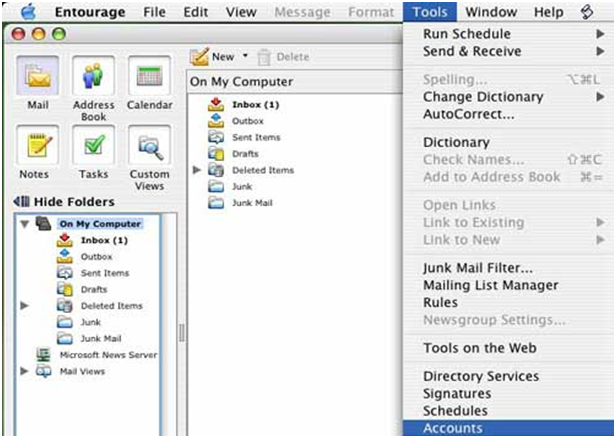
- 1. In Entourage, click on the Tools menu at the top of the screen and then click on Accounts.
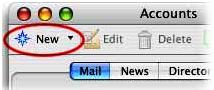
- 2. When the Accounts window opens, click the New button in the upper-left corner of the window
- 3. If the Account Setup Assistant appears, click Configure account manually.
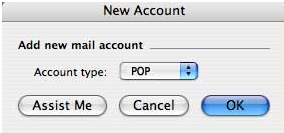
- 4. The New Account box appears. Select POP for your server type.
- 5. You will now be in the Account Settings tab in the Edit Account window:
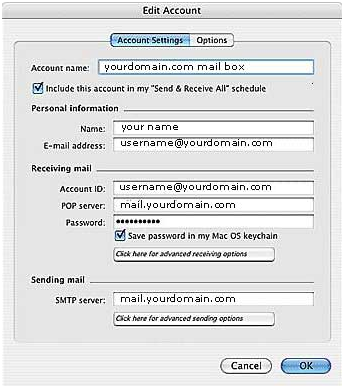
Note: Please change "yourdomain" above to the name of your actual domain name.
* Click on the Click here for advanced sending options button.
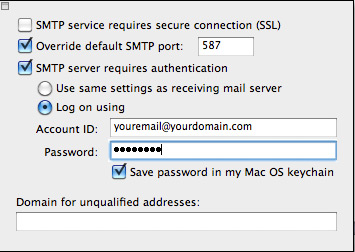
* Check the SMTP server requires authentication box
* Click Ok.